|
macOS users You're reading Help for the beta version of Yandex Browser, which isn't available for macOS. For information on Yandex Browser for macOS, see Help for the main browser version. |
FAQ about security
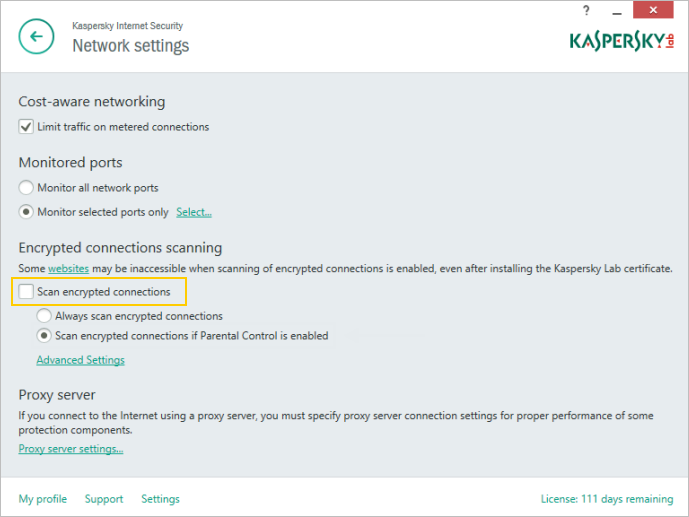
Disable HTTPS-connection tests in the Kaspersky Lab antivirus
Note
The path to the correct setting may be different depending on what version of the program you have.
-
Open the program be clicking in the upper part of the Windows task panel.
-
Tap . If the program is protected by password, enter your password in the window that appears and click Continue.
-
Click Additional → Network.
-
In the Encrypted connections scan section, enable the Do not scan encrypted connections option.
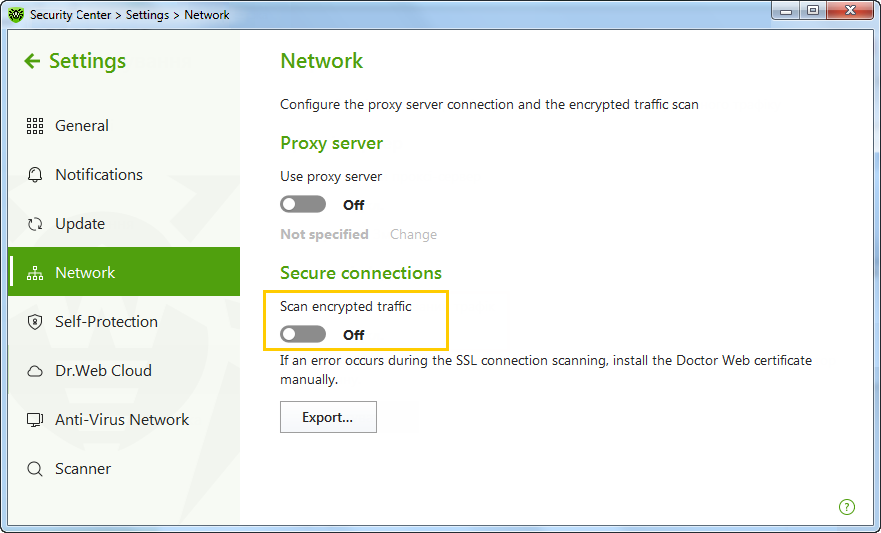
Disable HTTPS connection tests for the Dr.Web antivirus software
Note
The path to the correct setting may be different depending on what version of the program you have.
-
Open the program be clicking in the upper part of the Windows task panel.
-
Open Security center.
-
Click → Network.
-
Disable the Scan encrypted traffic option.
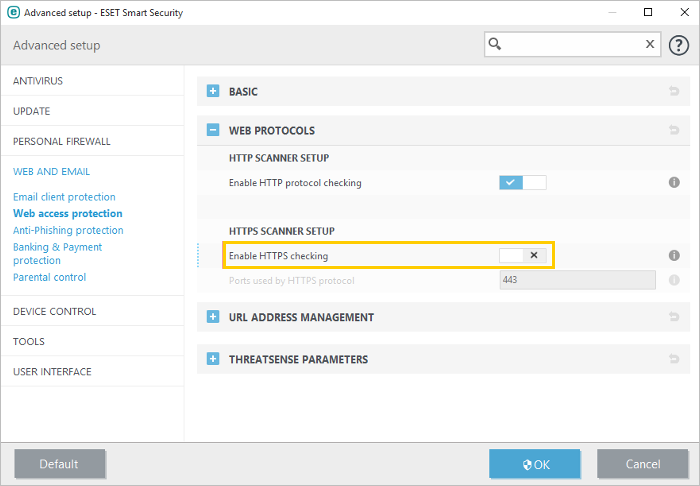
Disable HTTPS connection tests in the ESET NOD32 antivirus
Note
The path to the correct setting may be different depending on what version of the program you have.
-
Open the program be clicking in the upper part of the Windows task panel.
-
Click Setup → Internet protection.
-
In the lower right corner, click Advanced parameters.
-
Turn HTTPS tests off by disabling the Enable HTTPS checking option under Web protocols.
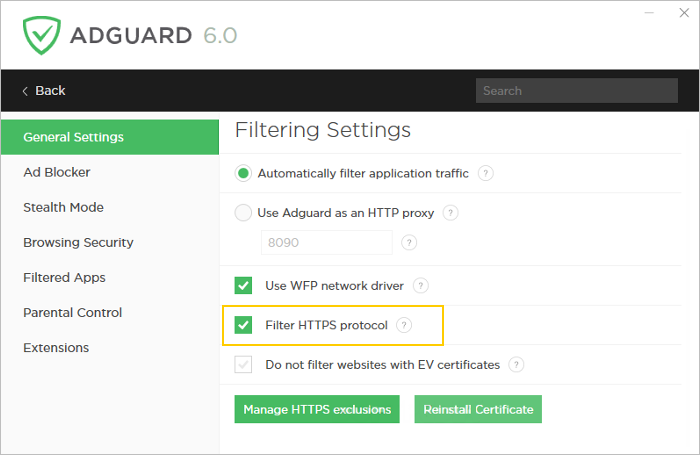
Disable HTTPS connection checks in AdGuard
Note
The path to the correct setting may be different depending on what version of the program you have. For the AdGuard extension, you don't need to disable anything because it doesn't create its own certificates.
-
Open the program be clicking in the upper part of the Windows task panel.
-
Click Settings → Network.
-
Disable the Filter HTTPS protocol option.